How to add an existing ASPX field to Modern UI
You want to display the same field in Modern UI.
A field already:
· exists in the DAC
· is visible on the ASPX screen
1. First, create the TypeScript and HTML extension files in the following folder:
FrontendSources/screen/src/screens/<Module>/<ScreenID>/extensions/
Files:
- <ScreenID>_Extension.ts
- <ScreenID>_Extension.html
For example, if I want to create an extension for Cases (CR306000), I will create two files in the following path:
FrontendSources\screen\src\screens\CR\CR306000\extensions
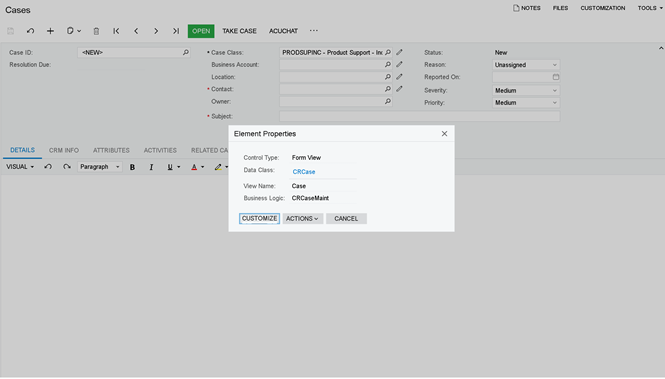
If the extensions folder does not exist, create it manually.
2. Add the field to the Modern UI layout (HTML)
Open the <ScreenID>_Extension.html file and add the field to the Modern UI layout.
Example:
<template>
<field after="#form_MessageLeft field[name='Subject']" name=" UsrMyField"></field>
</template>
Notes:
- The after attribute defines where the field will be inserted.
- The selector must reference an existing element in the base Modern UI layout.
- The name attribute must exactly match the DAC field name.
3. Expose the field in TypeScript
Open the <ScreenID>_Extension.ts file and extend the view that is bound to the layout section where the field is added.
Example:
How to find which view you need to extend
When you add a field in Modern UI, you must extend the same view that the layout section is bound to.
The easiest way to identify the correct view is to check the generated <ScreenID>.ts file.Check the generated <ScreenID>.ts file
Open:
FrontendSources/screen/src/screens/<Module>/<ScreenID>/<ScreenID>.ts
Inside the PXScreen class, you will see all views declared via createSingle() and createCollection()
Example (CR306000):
If you insert your custom field after Subject in the Case Summary section, you need to extend CRCaseHeader.
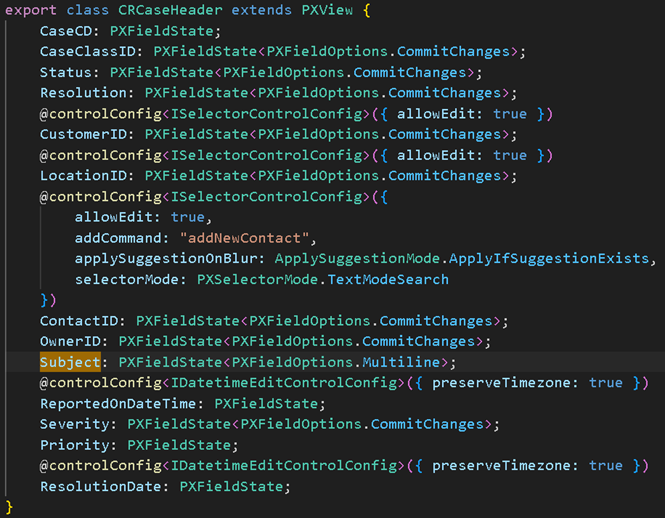
Example: extend CRCaseHeader
After adding the TypeScript and HTML extension files, you must rebuild the Modern UI frontend and publish the customization.
From the FrontendSources/screen folder, run:
npm run build-dev -- --env screenIds=CR306000
This command rebuilds only the specified screen and is recommended during development.
At this point, your Modern UI changes are working.
The final step is to include the Modern UI changes in the customization package.
Move the TypeScript and HTML extension files into the development folder of your customization project, following the same screen structure:
FrontendSources/screen/src/development/screens/<Module>/<ScreenID>/extensions
After moving the files, add them to the customization package and publish it.
Once published, the Modern UI changes will be available in the target environment.
Comments are provided by Disqus, which sets its own cookies, including for advertising.